

Best Shared Inbox for Small Teams in 2026
A practical guide to choosing a shared inbox for small teams that need clearer ownership, faster replies, AI summaries, and calmer Gmail, Outlook, or Zoho workflows.

A practical guide to choosing a shared inbox for small teams that need clearer ownership, faster replies, AI summaries, and calmer Gmail, Outlook, or Zoho workflows.
Small teams usually do not need a complicated help desk on day one.
They need a simple way to stop important emails from getting lost between people.
That is the real job of a shared inbox. It should show who owns each conversation, what needs a reply, what can be closed, and what context matters before someone writes back. If it only gives everyone access to the same mailbox, you still have the same mess. Now more people can see it.
The best shared inbox for small teams in 2026 should feel less like a ticketing system and more like a calmer operating layer for email. It should help founders, support teams, agencies, sales teams, and operators move through customer replies, leads, invoices, approvals, and follow-ups without adding unnecessary process.
This guide breaks down what to look for, where common shared inbox tools fall short, and how to choose a workflow that fits the way a lean team actually works.
What a shared inbox needs to solve
A shared inbox is useful when more than one person is responsible for the same flow of email.
Common examples:
- support@company.com
- hello@company.com
- sales@company.com
- partnerships@company.com
- billing@company.com
- a founder inbox that an assistant or operator helps manage
- an agency inbox where multiple people handle client replies
The problem is not just access. Google Workspace and Microsoft 365 can already let more than one person access email in different ways.
The harder problem is coordination.
Without a clear shared inbox workflow, teams run into the same issues:
- two people reply to the same thread
- nobody replies because everyone assumes someone else will
- a lead sits unread behind newsletters and admin
- a customer question is answered without full context
- a finance or approval thread disappears after being archived
- the team cannot tell what is active, waiting, or done
A good shared inbox gives the team a shared source of truth for email work.
Shared inbox vs help desk: choose the right weight
Not every team should start with a full help desk.
A help desk can be the right choice if you need ticket SLAs, complex routing, chat support, knowledge base workflows, macros, reporting, and a dedicated support operation.
But many small teams are not there yet. Their inbox is still a mix of customers, leads, partners, contractors, invoices, hiring, and internal operations. They do not want to turn every email into a ticket. They just want the right person to see it, understand it, reply, and close the loop.
That is where a lighter shared inbox can be better.
Use this simple rule:
- Choose a help desk when support is already a standalone department.
- Choose a shared inbox when email is still part of how the whole team operates.
For small teams, the best tool is usually the one that adds structure without making every conversation feel like support software.
What to look for in a shared inbox for small teams
Use this checklist before choosing a tool.
1. Clear ownership
The team should know who is responsible for each conversation.
Ownership does not always need to mean a heavy assignment system. For a lean team, it can be enough to know which inbox lane, person, or workflow owns the next step.
Look for a setup that helps answer:
- Who should reply?
- Is this waiting on us or the sender?
- Has anyone already handled it?
- Should this stay visible or be marked done?
Replyless supports shared inbox workflows for teams that need clearer visibility across support, client, and operations email without turning the inbox into a bulky support stack.
2. AI sorting that matches your actual work
Shared inboxes fail when every message lands in one crowded queue.
Small teams need practical lanes:
- customer questions
- sales leads
- billing
- urgent issues
- partner messages
- internal approvals
- newsletters and low-value noise
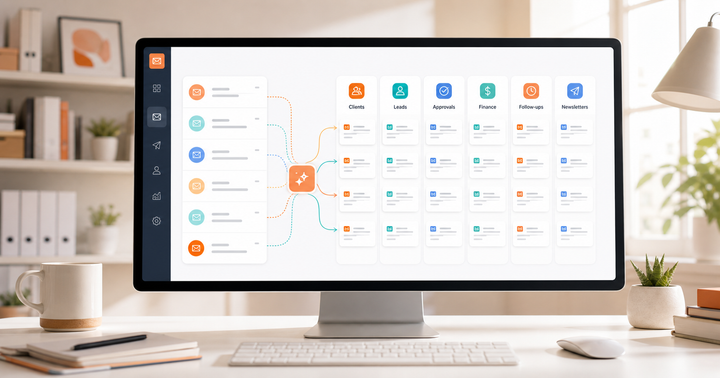
Manual labels can work for a while, but they break down as volume grows. A better shared inbox uses AI to classify messages by intent, urgency, sender, and workflow.
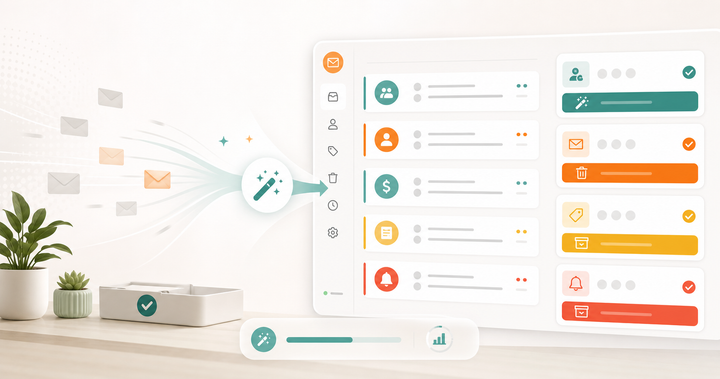
Replyless uses AI email categorization and AI split inboxes to turn a crowded mailbox into focused views. That matters more for teams than it does for individuals because every unclear email creates a coordination cost.
3. Thread summaries before replies
When one person owns every email, they usually remember the backstory.
When a team shares the inbox, that context is fragile.
A teammate may open a thread midway through a customer issue, sales conversation, or client negotiation. If they have to reread the entire conversation before replying, the shared inbox saves less time than expected.
Thread summaries help by answering:
- What happened so far?
- What did the sender ask for?
- What did we promise?
- What decision is still open?
- What should the next reply accomplish?
Replyless AI thread summaries are useful here because the team can move faster without replying blindly.
4. Drafts and snippets that keep replies consistent
Small teams often send the same kinds of replies over and over:
- "Thanks, we are checking this."
- "Can you send a little more context?"
- "Here are the next steps."
- "Looping in the right person."
- "Following up on this request."
- "We received your invoice and will confirm timing."
The best shared inbox should make these routine replies easier without making the team sound robotic.
Use reusable snippets for repeatable answers. Use AI drafts when the thread needs more context. Keep a human in the final review step, especially for pricing, refunds, client scope, legal issues, and sensitive customer replies.
Replyless supports email snippets and AI email drafts, so teams can reply faster while still editing before sending.
5. Reminders and done states
Shared inboxes should make active work visible and finished work disappear.
That sounds obvious, but many teams leave email open because they do not trust it to come back later.
Good shared inbox hygiene needs two simple states:
- done: no action is needed now
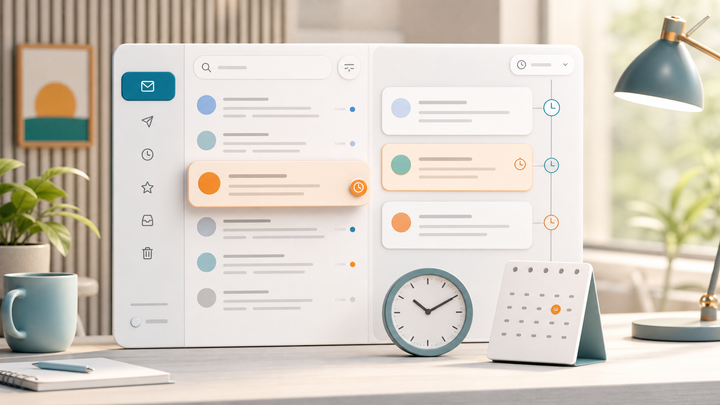
- remind me later: action may be needed at a future time
This is especially important for small teams because many conversations are not ready to close after one reply. A customer may need to send a screenshot. A prospect may need to talk to a partner. A contractor may need to confirm availability. A founder may need to review an approval later in the week.
Replyless email reminders help teams close finished or waiting threads while keeping active inboxes focused.
6. Support for the inboxes you already use
A shared inbox should fit your real provider setup.
Some teams live in Gmail. Some use Outlook. Some run parts of the business on Zoho Mail. Some founders and operators manage more than one account.
If the tool only works well for one mailbox, the team may end up with split workflows and missing context.
Replyless supports multiple email accounts across Gmail, Outlook, and Zoho workflows, while keeping each inbox scoped to the right account.
That matters when support, sales, personal founder email, and operations email should not blur together.
How popular tools approach shared inbox work
Different tools solve this problem from different angles.
Spark is a polished email client with team collaboration features like shared inboxes, shared drafts, assignments, comments, templates, snooze, send later, and priority views. It can be a good fit if your team wants a full email client with collaboration built in.
Canary Mail leans into secure cross-platform email, AI summaries, AI drafting, smart search, shared inboxes, assignments, and privacy-focused positioning. It may be attractive if security, encryption, and device coverage are top priorities.
Superhuman is built around speed, keyboard-driven email, split inboxes, reminders, snippets, and collaboration patterns like sharing live views of messages. It can be a strong fit for power users who want a premium speed-first inbox.
Traditional help desks are better when the email queue has become a true support operation with tickets, SLAs, routing, reporting, and multiple channels.
Replyless sits in a different lane: a practical AI email workflow for small teams that want shared visibility, AI sorting, summaries, drafts, reminders, snippets, cleaner workflows, and account-aware organization across Gmail, Outlook, and Zoho.
The buying question is simple:
Do you need a support platform, a faster personal email client, or a calmer shared AI inbox for the whole team?
A simple shared inbox workflow for small teams
If your shared inbox is messy today, start with a lightweight system.
Step 1: Create lanes before rules
Do not start by building complex automation.
Start by deciding what your team actually needs to see separately.
Useful lanes might include:
- urgent customer replies
- sales leads
- billing and invoices
- client approvals
- founder review
- partnerships
- newsletters and low-priority updates
Once the lanes are clear, AI sorting and rules become much easier to trust.
Step 2: Decide ownership rules
Write down simple ownership patterns.
Examples:
- Support owns product questions.
- Sales owns new inbound leads.
- Ops owns billing and vendor threads.
- The founder owns investor, hiring, and high-stakes customer conversations.
- Agencies can assign client-specific inbox lanes to the account owner.
The goal is not bureaucracy. The goal is to remove guessing.
Step 3: Summarize before handoff
If someone else may reply, summarize the thread before handing it off.
This avoids the classic shared inbox failure: one person forwards or tags another teammate, but the teammate still has to reconstruct the whole story.
With AI summaries, the handoff can be much cleaner:
- current issue
- previous reply
- open question
- suggested next action
That saves time and reduces rushed replies.
Step 4: Use snippets for repeatable replies
Every shared inbox should have a small snippet library.
Start with five to ten responses:
- first customer acknowledgment
- request for more details
- billing received
- handoff to teammate
- meeting follow-up
- polite follow-up
- closing a resolved thread
Keep snippets short. The more specific the situation, the more the team should edit.
Step 5: Close or remind every thread
At the end of the day, every handled thread should land in one of three places:
- replied and done
- waiting with a reminder
- still active and visible
This is what makes a shared inbox feel calm. The team is not relying on memory, unread badges, or "I think someone handled that."
When Replyless is the right shared inbox fit
Replyless is a strong fit when your team wants email to feel organized without moving into a heavy support platform too early.
It is especially useful if:
- you manage shared support, sales, client, or operations email
- important conversations are buried behind low-value noise
- teammates need better context before replying
- you use Gmail, Outlook, or Zoho Mail
- you want AI sorting, split inboxes, summaries, drafts, snippets, reminders, and cleaner workflows in one place
- you need each connected account to stay scoped and organized
If your team needs complex support reporting, omnichannel ticketing, call center tools, or enterprise service management, a help desk may be the better category.
If your team mainly needs a calmer way to share, sort, summarize, reply, and follow up on email, Replyless is built for that.
The bottom line
The best shared inbox for small teams is not just a mailbox more people can access.
It is a system for deciding what matters, who owns it, what happened already, what to say next, and when the thread can leave the active queue.
For small teams, that usually means choosing a tool that keeps email lightweight but adds enough structure to prevent missed replies and duplicate work.
Start with Replyless shared inbox workflows, then pair them with AI split inboxes, categorization, summaries, drafts, snippets, and reminders. That gives your team the shared context it needs without making every conversation feel like a ticket.
Comments ()