

How to Set Up Smart Email Filters That Actually Work (A Creator's Guide)
Most creators waste hours manually sorting emails when smart filters could do it automatically. Here's a step-by-step guide to building email filters that separate brand deals, fan mail, and noise — so you only see what matters.
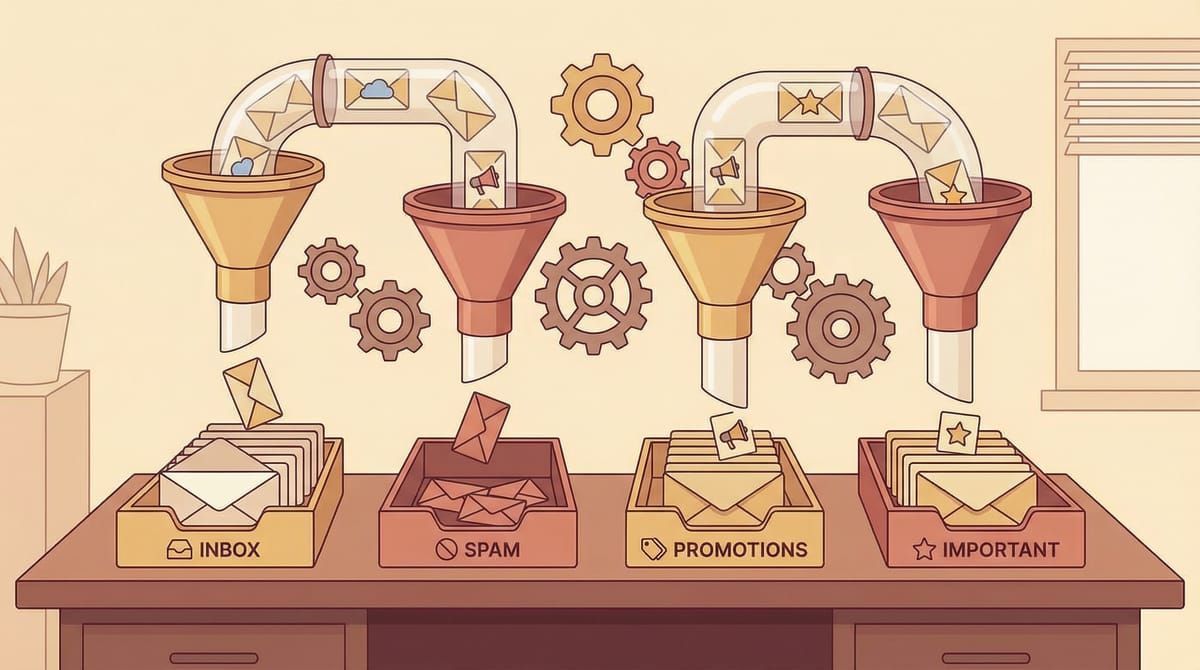
If you're a creator with a growing audience, your inbox is probably a war zone. Fan messages, brand pitches, newsletter confirmations, invoice receipts, and spam — all fighting for the same screen space.
The fix isn't "check email more often." It's building filters that do the sorting for you.
This guide walks you through setting up smart email filters that actually reduce inbox noise — whether you use Gmail, Outlook, or an AI-native email client like Replyless.
Why Most Email Filters Fail Creators
The default approach to email filtering looks like this:
- Get annoyed by a specific sender
- Create a one-off filter
- Forget about it
- Repeat 47 times
- End up with a mess of overlapping rules that nobody understands
The problem isn't filters themselves — it's that most people build them reactively instead of systematically.
A good filter setup starts with categories, not individual senders.
Step 1: Define Your Email Categories
Before touching any settings, list the 5–7 types of email you actually receive. For most creators, it looks something like this:
- Brand deals and sponsorships — pitches, contracts, invoices
- Fan and community messages — DMs forwarded to email, comment notifications
- Collaboration requests — podcast invites, guest post pitches, cross-promos
- Operational emails — hosting invoices, tool receipts, domain renewals
- Newsletters — industry reads, competitor updates
- Personal — friends, family, non-work
Once you have your categories, everything else gets easier.
Step 2: Build Category-Based Filters in Gmail
In Gmail, go to Settings → Filters and Blocked Addresses → Create a new filter.
For each category, create a filter based on:
- From address patterns — e.g.,
*@brandname.comfor known sponsors - Subject keywords — e.g., "collaboration", "sponsorship", "invoice"
- To address — if you use a dedicated email like
collabs@yourdomain.com
Set the action to Apply label and Skip Inbox (optional, if you want a clean primary view).
Pro tip
Use Gmail's + trick: give brands yourname+deals@gmail.com and create a filter for that alias. Every email sent to that address gets auto-labelled.
Step 3: Go Beyond Manual Filters With AI
Manual filters work — until your inbox grows past 100+ emails per day. At that point, keyword-based rules start breaking down:
- A fan message with the word "collab" gets mislabelled as a brand deal
- A newsletter about sponsorships lands in your deals folder
- New senders don't match any existing rule
This is where AI-powered email sorting changes the game. Tools like Replyless use context-aware AI to understand intent, not just keywords. A pitch from a new brand gets categorised correctly even if you've never heard of them.
What AI filtering looks like in practice
- Split inboxes — separate views for brand deals, fan mail, operations, and newsletters
- Auto-learning — the AI improves every time you move an email to the right category
- Zero maintenance — no rules to update, no filters to manage
If you're spending more than 10 minutes a day sorting email, it's worth trying the Replyless free plan to see the difference.
Step 4: Set Up a "Noise" Filter
Every inbox has noise — emails that aren't spam but aren't useful either. Think:
- Social media notifications you don't need
- Marketing emails from tools you signed up for once
- Automated receipts for small purchases
Create a catch-all "Noise" filter that auto-archives these. In Gmail:
- Search for
unsubscribe(most marketing emails include this) - Exclude your important senders
- Apply a "Noise" label and skip the inbox
Or use an inbox cleaner tool to bulk-unsubscribe and clean up in minutes.
Step 5: Review and Prune Quarterly
Filters aren't set-and-forget. Every 3 months:
- Check for misrouted emails — are important messages landing in the wrong folder?
- Remove outdated filters — old brand contacts, cancelled subscriptions
- Add new patterns — new collaboration partners, new tools, new revenue streams
A 15-minute quarterly review keeps your system sharp and your inbox clean.
The Creator Filter Stack: A Quick Reference
Category | Filter Method | Action |
|---|---|---|
Brand deals | Sender domain + keywords | Label + star |
Fan messages | Social notification senders | Label |
Collabs | Subject keywords | Label + star |
Operations | Sender domain (tools, hosting) | Label + archive |
Newsletters |
| Label + skip inbox |
Noise | Catch-all for the rest | Auto-archive |
The Bottom Line
Smart email filters aren't about hiding emails — they're about seeing the right emails first. For creators, that means brand deals and collaboration requests surface immediately, while noise disappears automatically.
If manual filters feel like a full-time job, consider switching to an AI-native inbox like Replyless that handles categorisation for you. You can check your current email volume to see how much time you'd save.
Your inbox should be a growth tool, not a stress trigger.


Comments ()